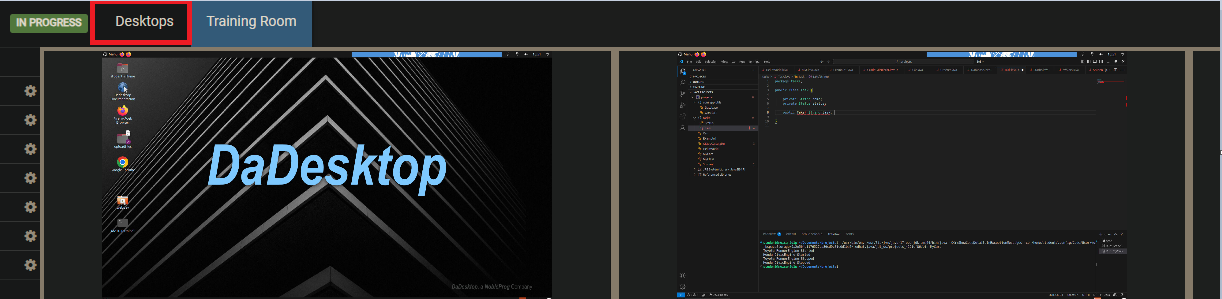
Training Room Overview
The Training Room gives you a simple, streamlined way to enter a course.
From here, you can:
- Manage your own virtual desktop—and trainers can manage participants’ desktops too
- See the trainer’s desktop in a side‑by‑side or grid layout
- Record your screen
- Detach the desktop to a separate browser window, or even push it onto a second monitor
- Chat with others
-
Browse training materials
Everything happens right inside your browser. By default, when learners sign into a course they’re taken directly to the Training Room—this keeps the experience simple for first‑time users.
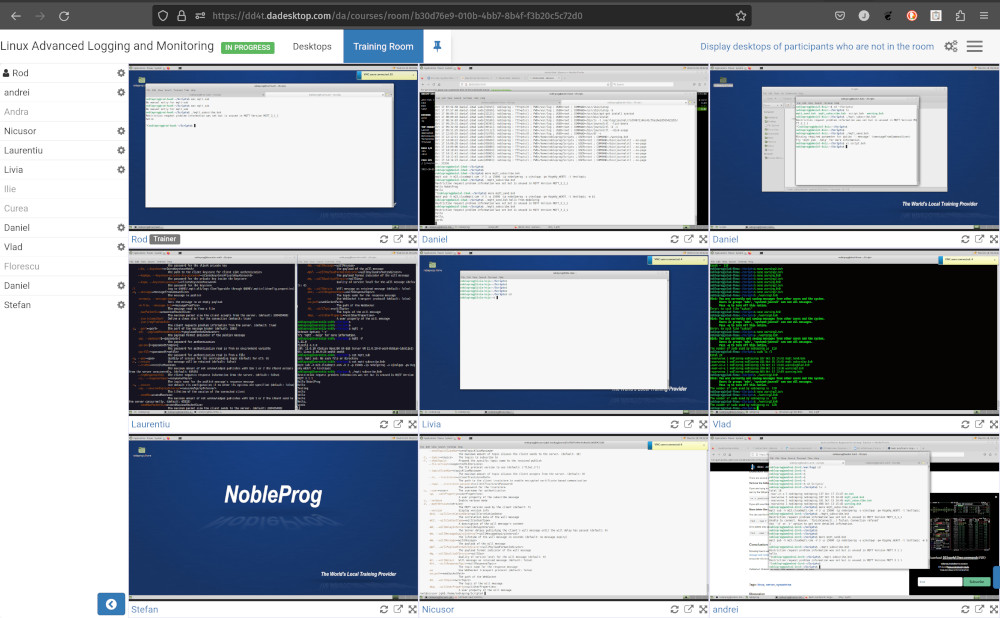
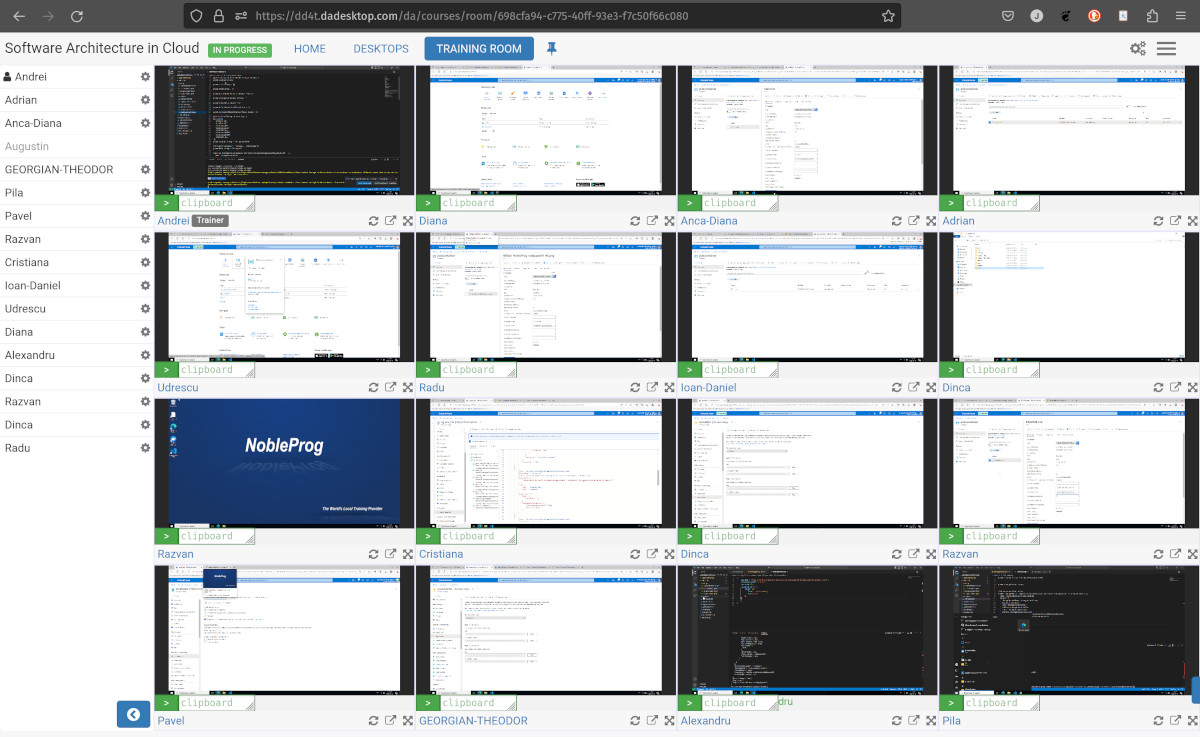
Instructors gain extra capabilities: they can watch every participant’s machine at once and interact with any desktop, making it easy to assist someone who needs help or is falling behind. That bird’s‑eye view is unmatched and lets trainers recreate the feel of a traditional classroom.
Trainer’s Perspective of the Training Room
Training Room showing 16 participants (instructor only)
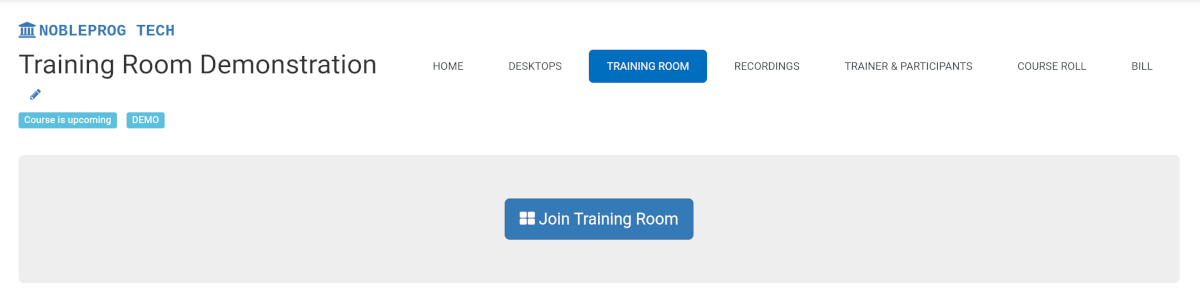
How to Enter a Training Room
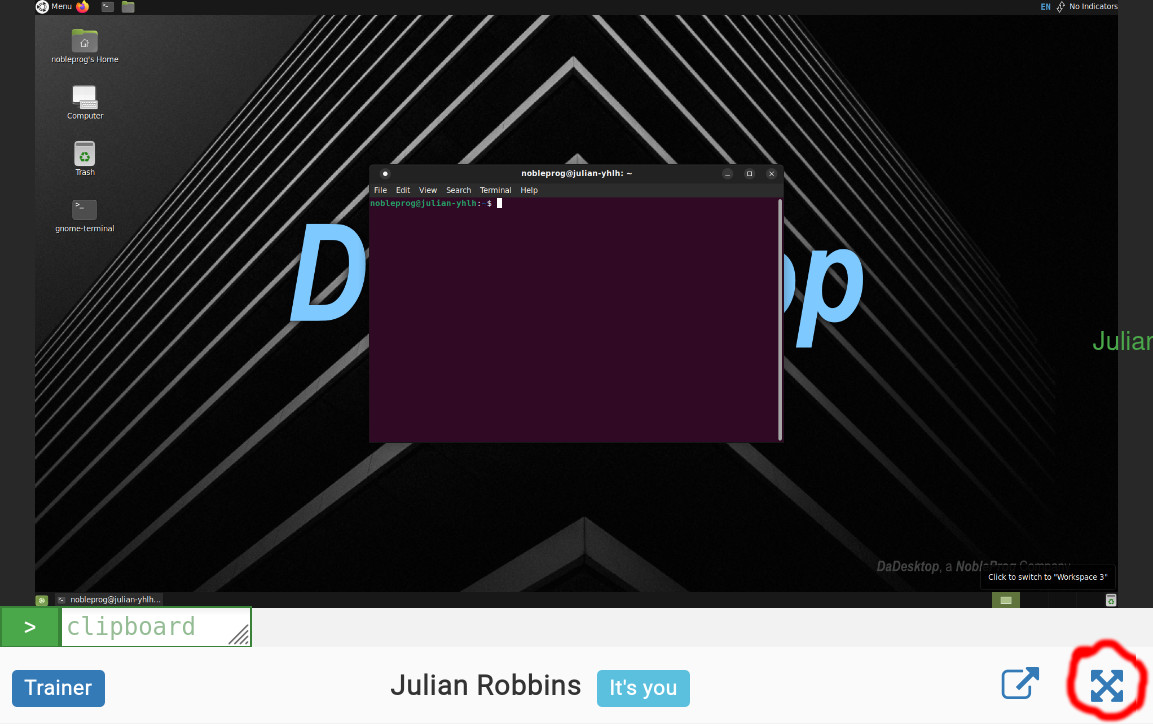
Maximizing the Window
Leaving the Training Room View
It might not be the most obvious move, but to exit the Training Room view just click the `Desktop` tab once more—that brings you back to the main Training page.