Your Account
Every user can adjust several settings from their account page.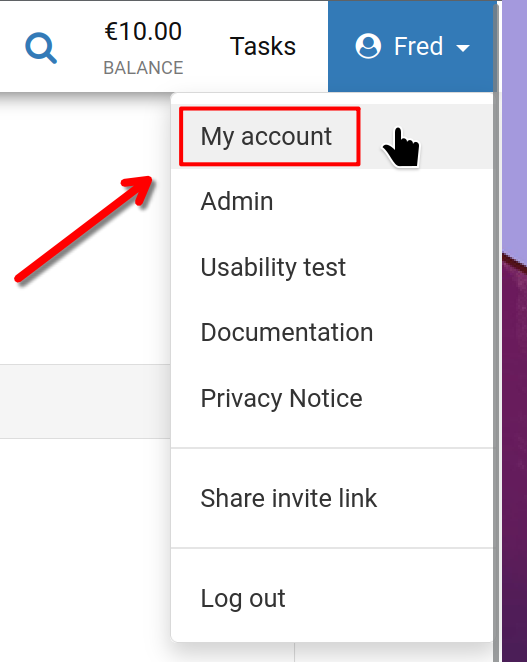
To begin, click on your username in the top right corner of the screen, then select the 'My account' option shown here.
Account Overview
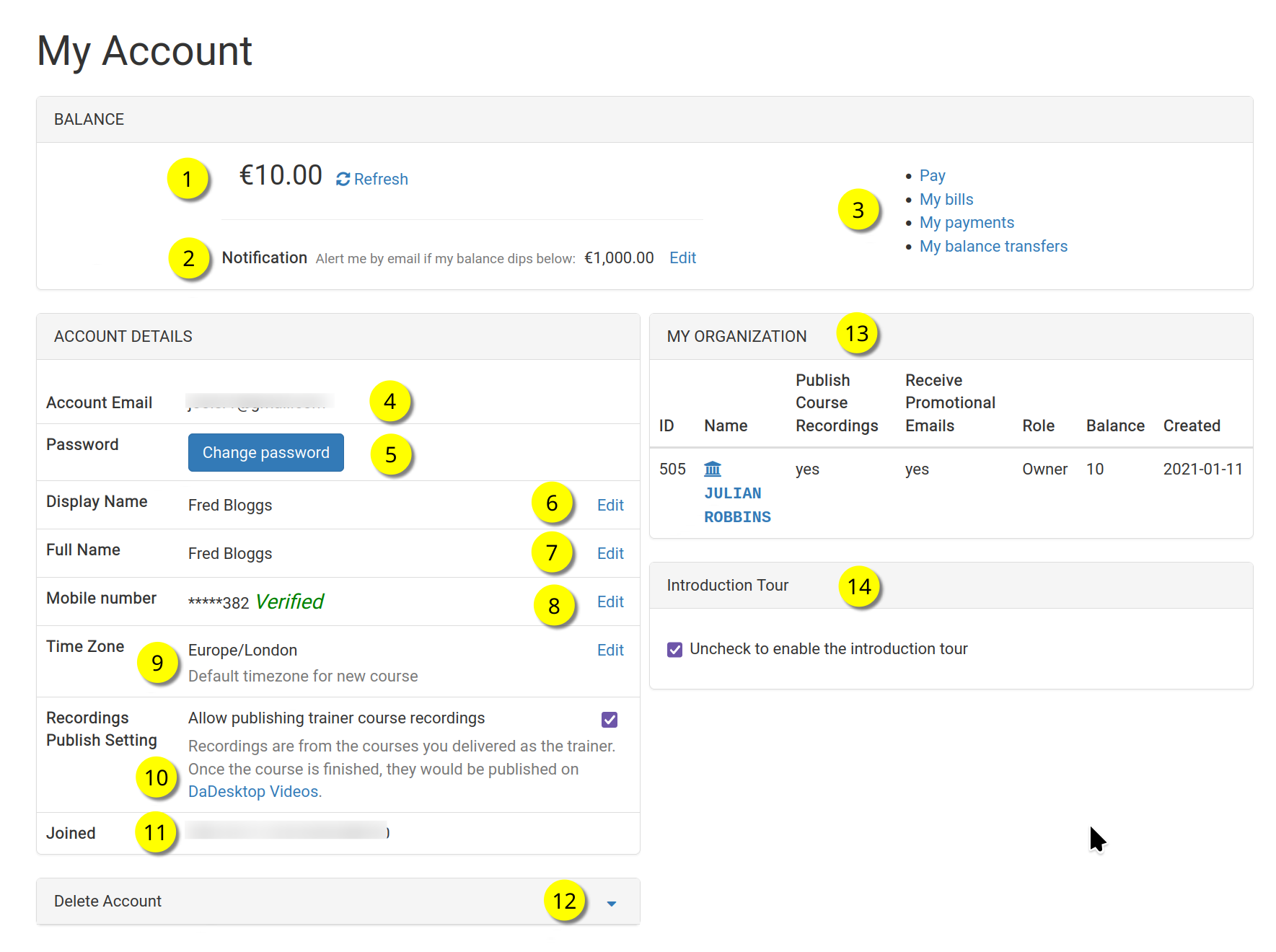
This is what the Account Overview looks like.
Refer to the numbered descriptions below for each function.
Legend
| Description | ||
|---|---|---|
| 1 | Balance | Displays your existing balance |
| 2 | Notifications | You will receive an email alert if your balance falls below a threshold you specify. |
| 3 | Billing Links | Here you can access links for making payments, checking your balance, viewing past transactions, and transferring funds. |
| 4 | Account Email | This email address is fixed and cannot be modified. |
| 5 | Password | You can update your password in this field. |
| 6 | Display Name | This is the publicly shown name; you can modify it whenever needed. |
| 7 | Full Name | Your complete legal name, editable as necessary. |
| 8 | Mobile Number | You can update your phone number here. |
| 9 | Timezone | Set this so all displayed times reflect your local time zone. |
| 10 | Recording Publication Settings | For trainers: choose whether course recordings from your machine can be shared on the dadesktop.com/videos site, which is available here in China. |
| 11 | Joined Date | The date you first registered with DaDesktop. |
| 12 | Delete Account | If you'd like to permanently remove your DaDesktop account, click here. All associated information will be erased. |
| 13 | My Organisation | You can also add an Organisation to your account. This area shows your organisation's details. |
| 14 | Intro Tour | To replay the introductory tour, simply uncheck this box. The tutorial will then appear again. |