Remote Replica
The Remote Replica function lets you replicate, or clone, your Fresh Start Desktop to a second server, often situated in a separate location. Once configured, any modifications you make to your machine are silently and automatically synced to the replica in the background, requiring no further input from you.
This is a highly practical feature that can serve a variety of purposes; two key use cases are outlined below.
Do note that Remote Replica is currently only available for Fresh Start machines, though it can also be utilised within DaDesktop for work, known as DD4W.
First Use Case: Create a Remote Replica (clone) of your Desktop on a server in a different data centre
As a form of insurance, you might want to create a Remote Replica of your Desktop on a server housed in a separate data centre. This protects you should the main server become unavailable for any reason. In that event, you can simply switch to working with your Remote Replica copy and pick up precisely where you left off on this machine.
Initially, our Fresh Start machine is hosted in the UK Data Center, for example, bd3uk.
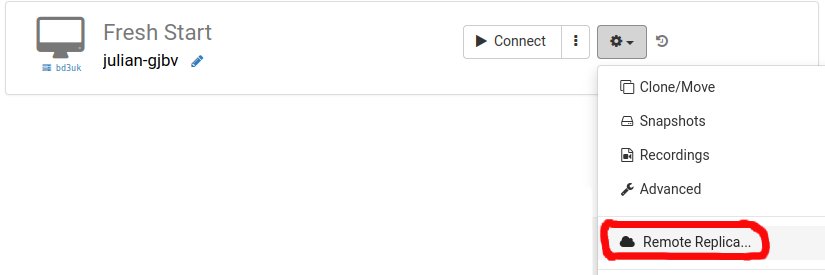
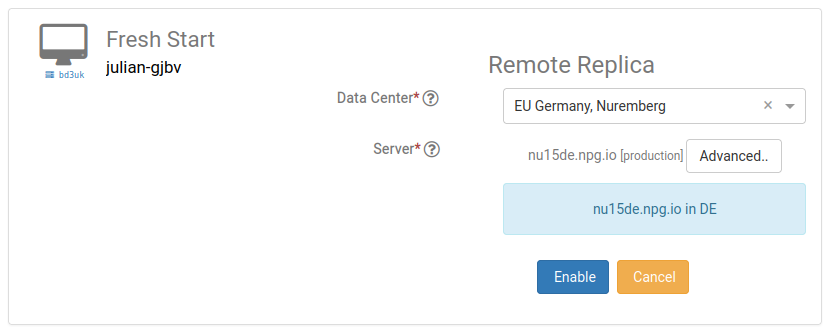
Now, pick the Data Centre you'd like to host the Remote Replica; this should ideally be different from your existing machine's location. You could opt for a different Data centre, or even a server in another country.
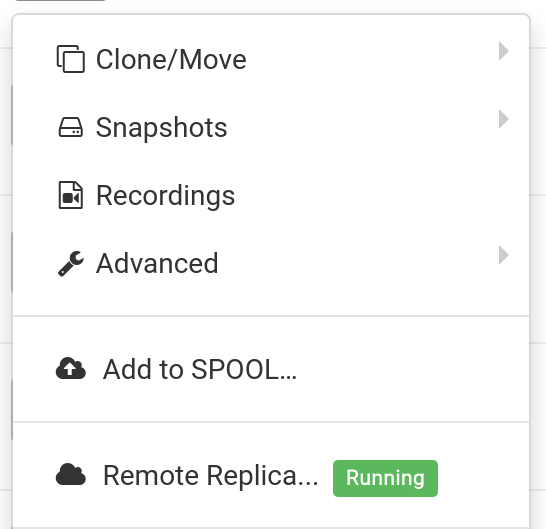
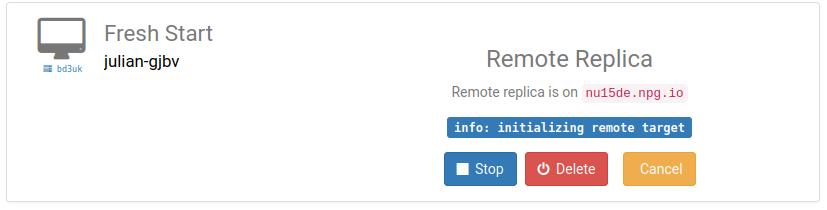
Your Remote Replica desktop is now being generated. The time this takes will depend on the geographical distance of the replica and the size of your Desktop. You are free to continue your work on the original machine while this happens.
Restoring a Remote Replica
If, for any reason, you find you cannot access your FreshStart Desktop, you have the option to Restore the Remote Replica that has been configured.
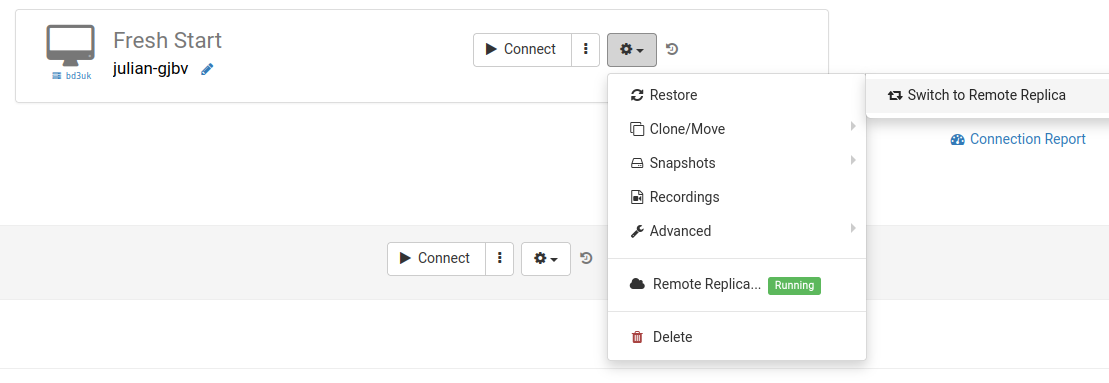
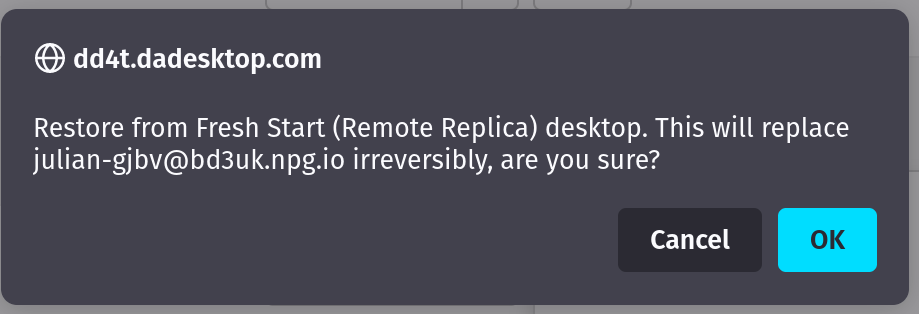
Once you've switched to the Remote Replica, you cannot revert to the original Desktop. This is of no consequence, as the replica is an exact clone anyway.
Be aware, though, that after making the switch to your Remote Replica Desktop, the replication process ceases to run. Should you wish to establish another replica, you must repeat the initial steps outlined above to set up a new Replica Desktop from scratch.

Second Use Case: Employ a Replica for FreshStart in a different geographical region to cut down on connection delay
Remote Replica proves exceptionally handy when you need a copy of your Fresh Start machine located physically closer to you while you are developing course content on it. For instance, imagine a trainer based in Germany who is preparing a course that will be run in South Africa. This is a fairly typical scenario for DaDesktop, as the platform is designed to facilitate courses like this with ease.
In such a situation, you would not want to build your course's Fresh Start Desktop on a server in South Africa, as the connection latency would be uncomfortably high. Instead, you'd create a Remote Replica of your Desktop within Europe so the delay is kept to a minimum. The Replica will automatically stay synchronised with any edits you make.
Once you've finished your work on the Fresh Start Desktop, you can restore the Remote Replica onto the Trainer machine situated in South Africa, ready for rapid copying to that machine and to all the Participants.