Picking Several Course Dates
While setting up a course, you can assign it to run on more than one date. This lets you adjust when the course is available for your learners, helping you better fit it into your schedule.
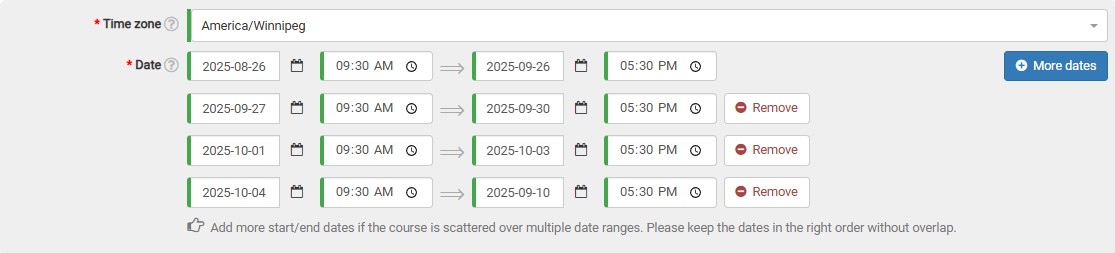
In the date area of the course form, click the "More dates" button. A fresh date selection line will then show up in the form.

You can add as many date ranges as needed, provided none of them overlap.
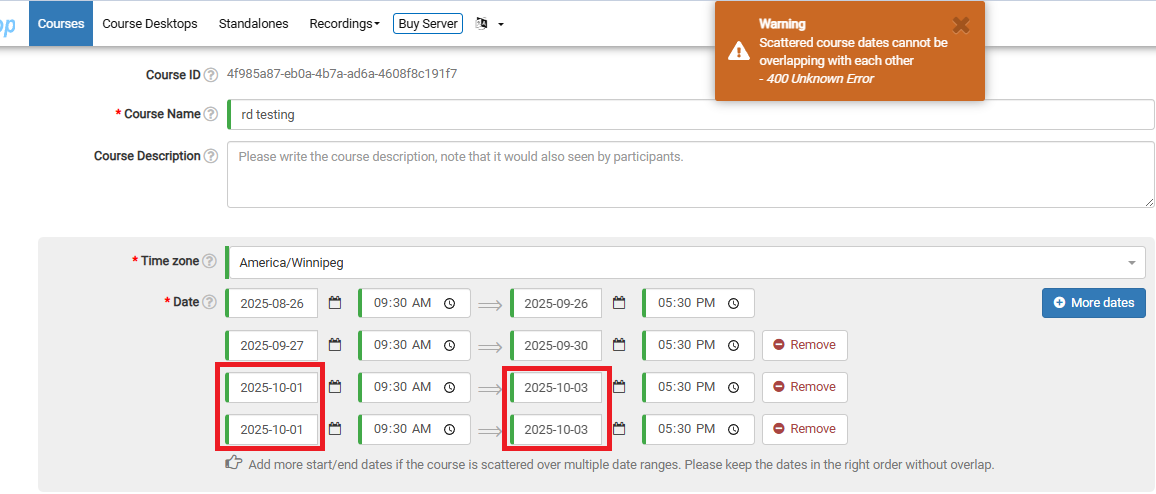
If they do overlap, you'll see a warning at the top of the page when you try to submit the course. In the example below, I've accidentally selected the same date range twice.