Recycle Bin
Once a course wraps up, all the machines tied to it—like the Fresh Start, Trainer, and every Participant machine—are taken down after a brief interval.
We’ve introduced a feature that lets you retrieve those machines from the 'Recycle Bin' for some time after they’ve been cleared from the course. How long they remain restorable isn’t fixed—it hinges on things like server disk space, how heavily the courses are used, and other variables. Generally, though, you can count on being able to recover machines for at least a few months after the course ends.
For each machine, if the corresponding Course is still around, you can Restore it directly back to that course. When the course is gone, the alternative is to Restore to a Standalone Desktop. You also have the option to permanently Delete it.
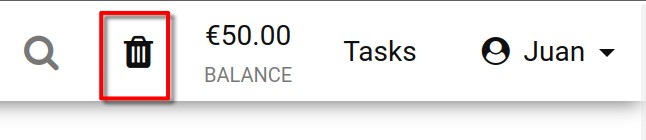
You can check the state of your Recycle bin by glancing at its icon. A black icon means restorable machines are waiting; a greyed-out one indicates the bin is empty.
There’s also a search function to sift through the machines in the recycle bin by name, server name, or course name.
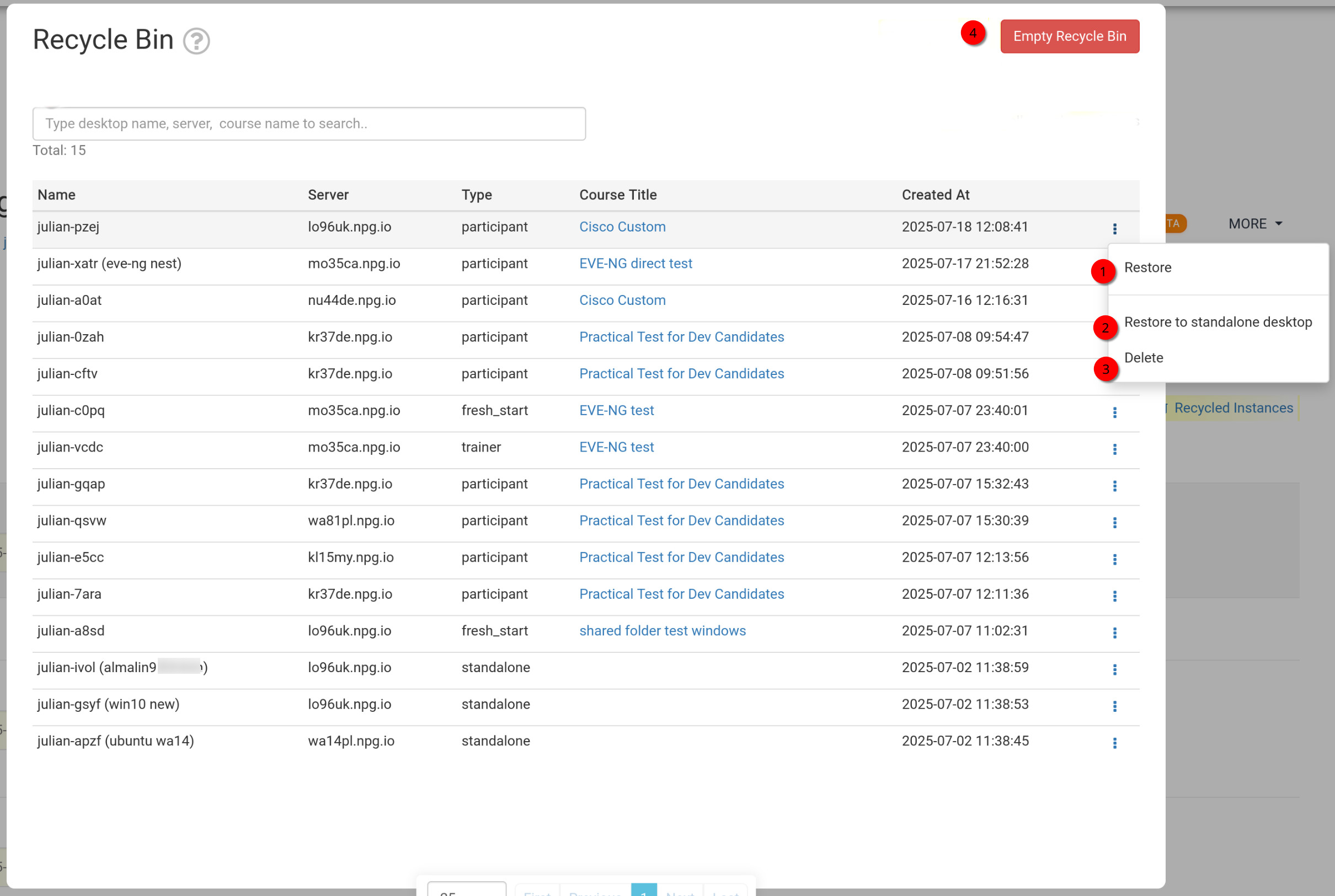
How to Restore or Delete Your Machines from the Recycle Bin
- Restore – Select this to bring back a machine that was removed from a course; it rejoins the course it originally belonged to. However, if the course has already concluded, the machine can’t be restored there and must instead be recovered as a standalone machine (see below).
- Restore to Standalone Desktop – This choice is typically for when the course is over and restoration there isn’t possible. Turning it into a standalone machine offers greater flexibility, since it stays around for as long as you need.
- Delete – Choose this to permanently remove a machine from the Recycle Bin. Be aware, once you delete it from here, restoration is no longer possible.
- Empty Recycle Bin - Clicking the red Empty Recycle Bin button wipes out every machine from the Recycle Bin, and they can’t be brought back afterwards.