Adjusting Disk, CPU, and Memory Settings
Trainers can modify the resources originally set up for the Fresh-Start Desktop. This comes in handy when you find that your course needs extra CPU, memory, or storage to handle additional programs or software.
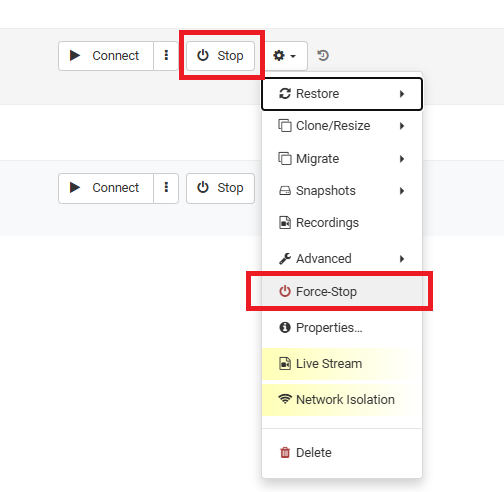
To adjust these settings, you'll need to ensure the Fresh-Start desktop is stopped first. Click the gear icon and choose either "Stop" or "Force-Stop" for the desktop.
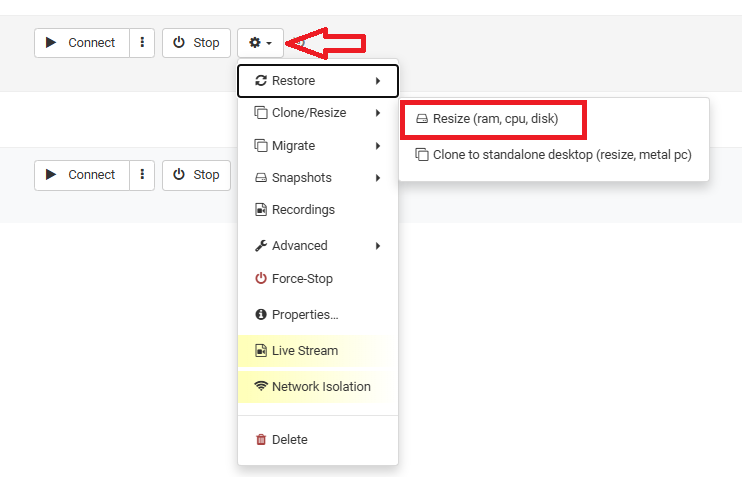
After the desktop has stopped, you can proceed to modify the allocated resources. Click the gear icon again, then go to advanced > Resize (ram, cpu, disk).
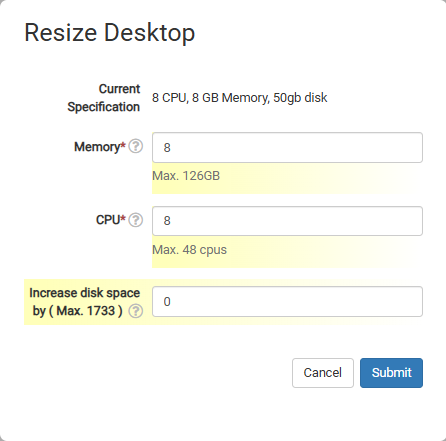
Selecting this will bring up the Resize form, where you can reassign the resources (CPU, RAM, or Storage) your desktop needs. The form will display the maximum limit for each resource.
Do note that these changes will impact the desktop's cost, but it's best to allocate what's necessary to keep the course running smoothly.