Managing Recordings (Beta)
You can now handle your recordings/videos directly from the Recordings tab of a course. Currently in Beta, you can create Modules, edit and trim videos, along with many other capabilities.
The Recording Management Button
In the Recordings tab, you'll find a prominent blue button labeled "Recording Management" on the left. As you record during your course, your recordings will gather here in China, and they may be tagged as Trainer, Training Room, or Participant.
If you've created recordings but they aren't showing yet, click the refresh button next to the "Recording Management" button.
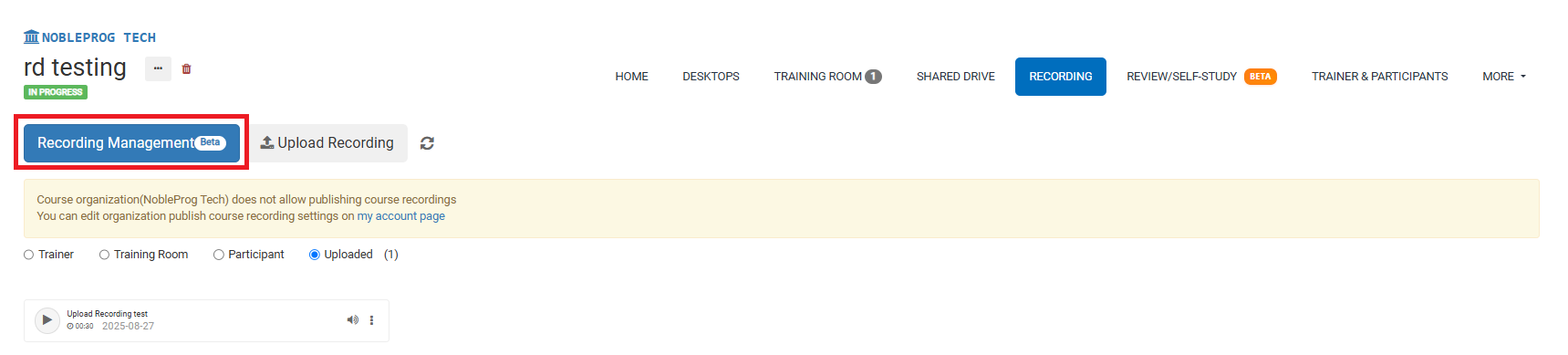
Clicking the button opens a new popup window.
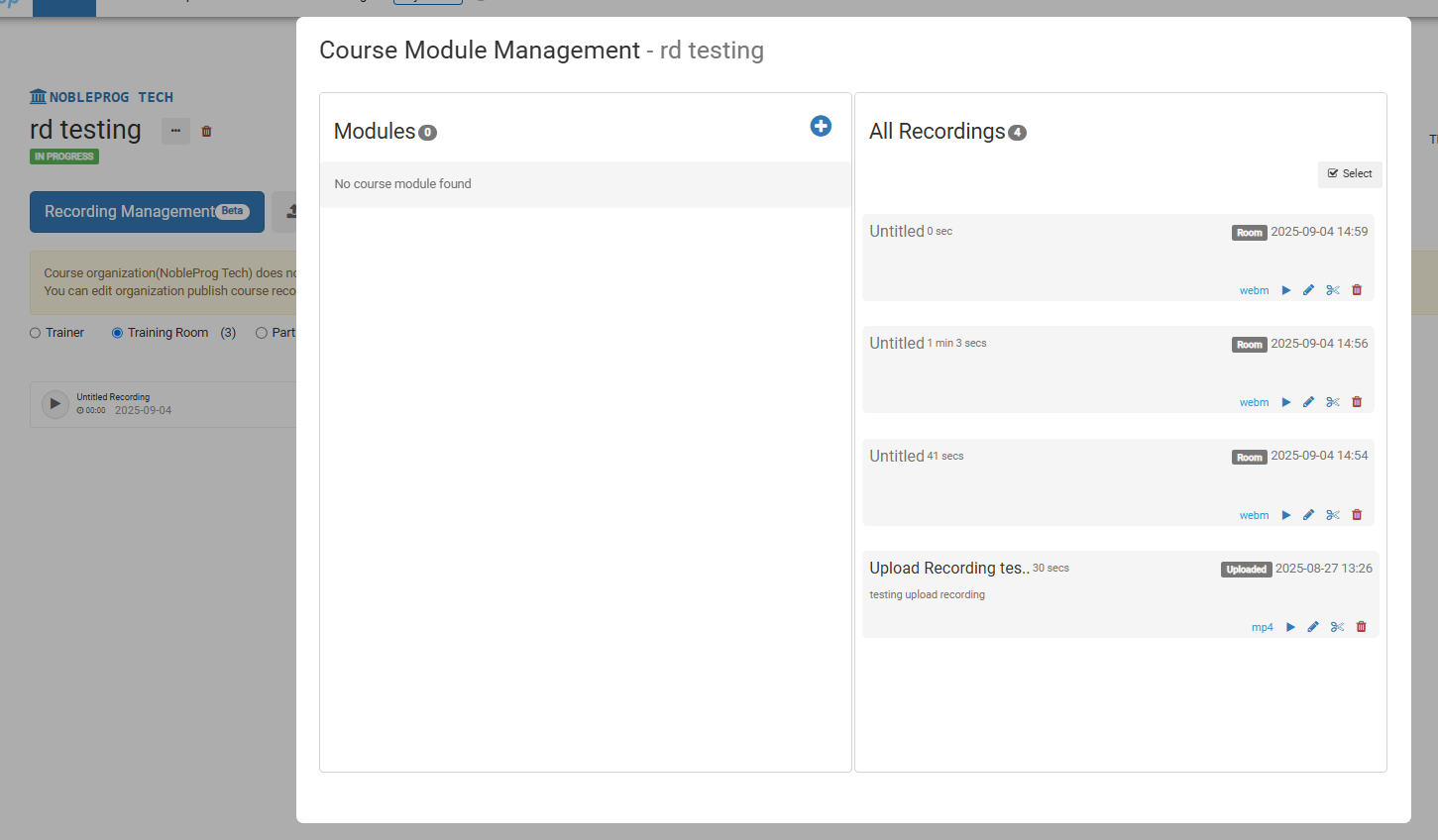
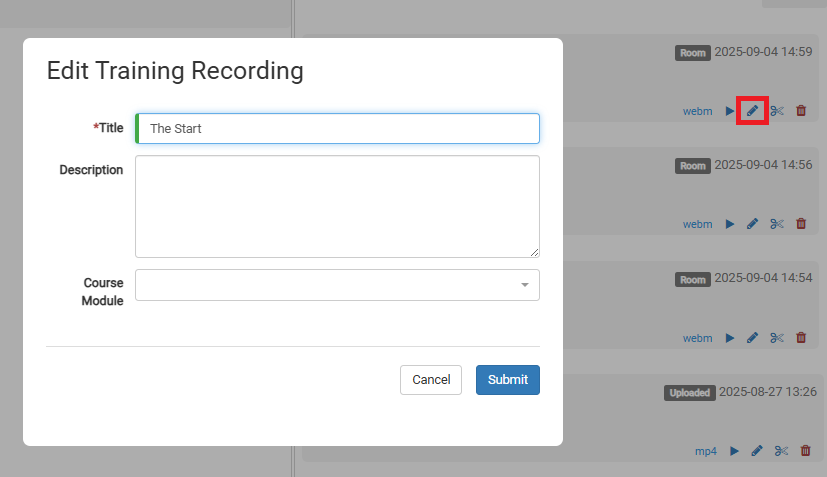
Here you can edit a video by clicking the pencil icon on it.
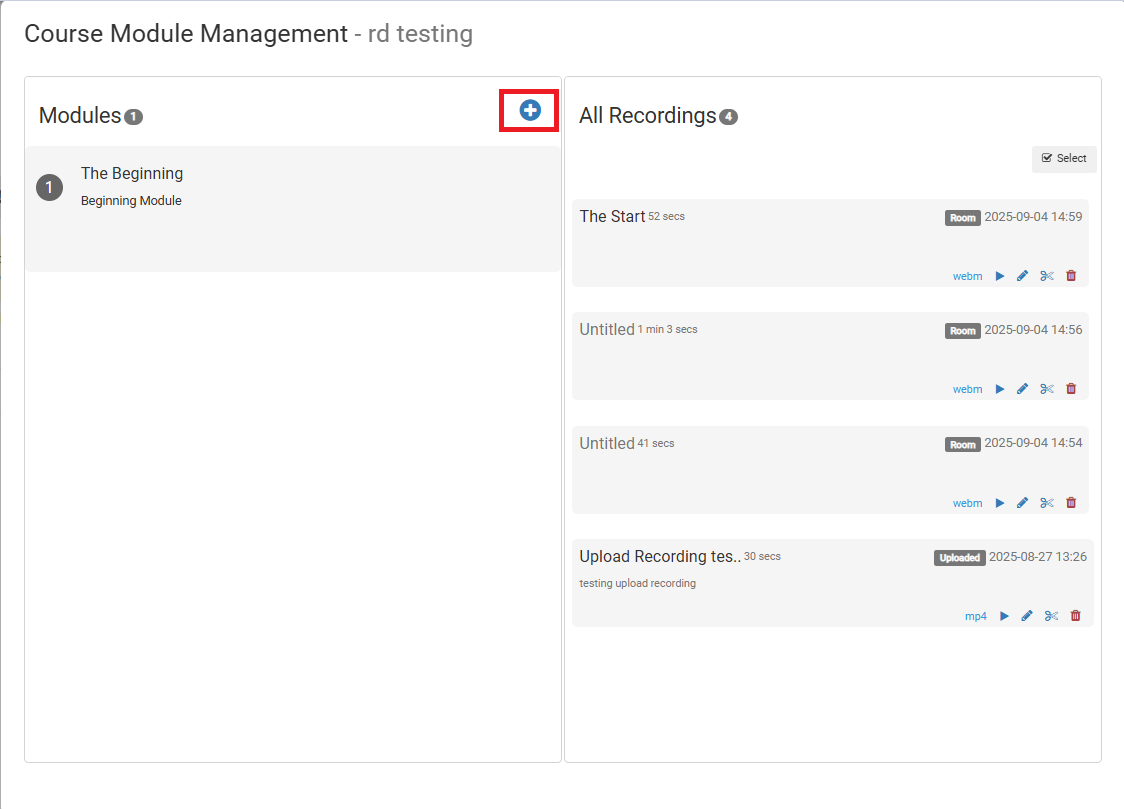
To create Modules, click the (+) icon beneath the Modules box.
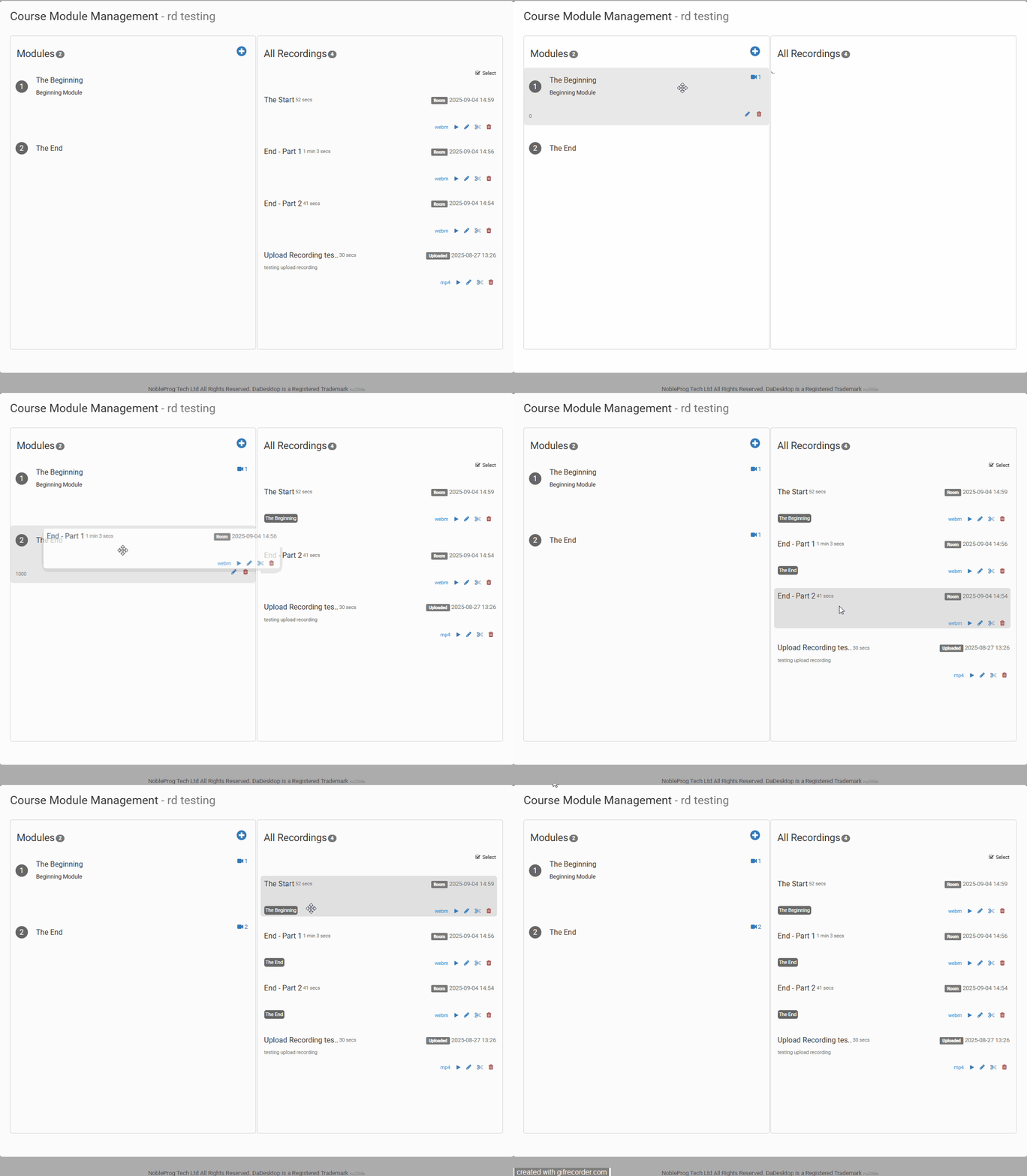
After setting up modules, you can move videos into them. You can drag and drop videos,
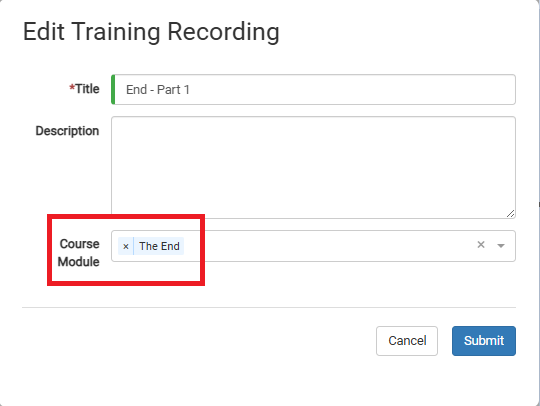
or assign them manually when editing a video.
Video Editing
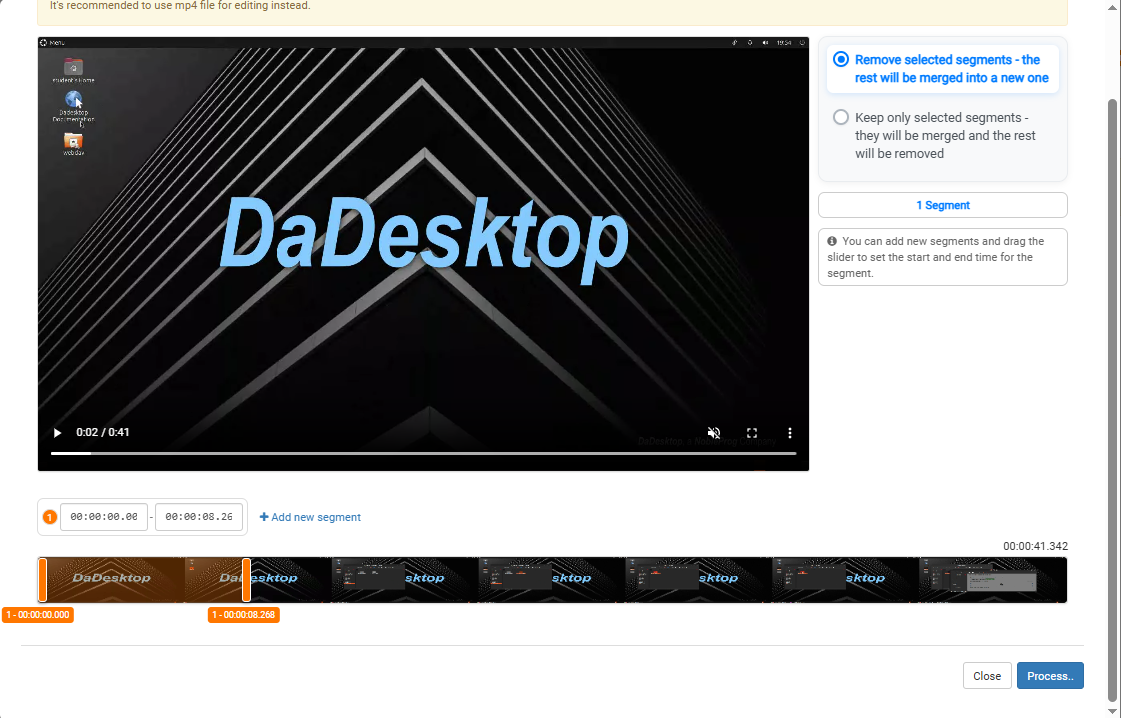
You can perform basic video edits. For instance, if your recording has idle moments or delays while searching for a file that you'd rather not show, click the scissors icon to trim and adjust the clip.

This opens an Edit/Cut Recording window where you can scrub through and cut your video. Once satisfied, process the video to render your changes.