Trainer Recordings
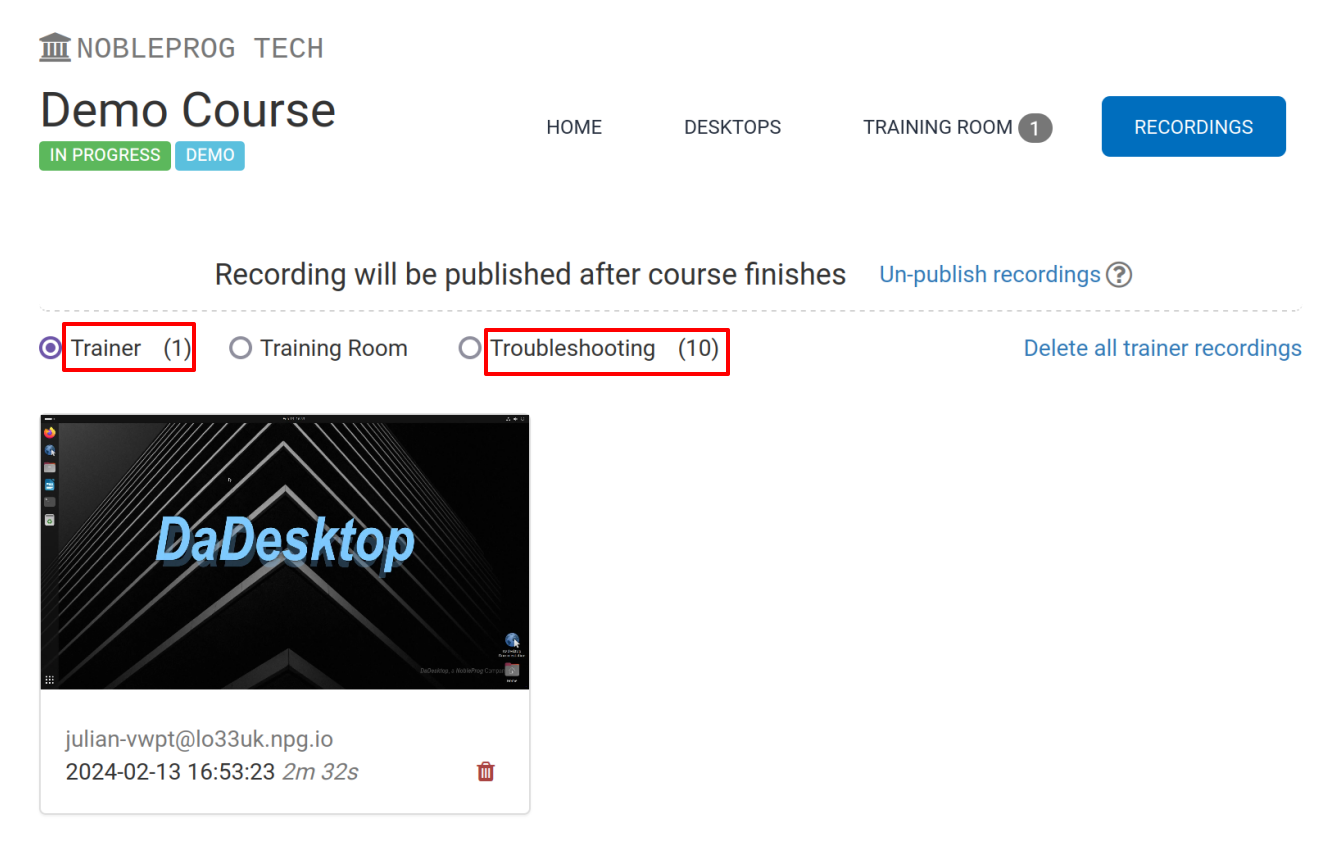
DaDesktop offers several methods for capturing desktop activity and course sessions. These fall into a few categories: Troubleshooting recordings, Training Room recordings, and Trainer recordings.
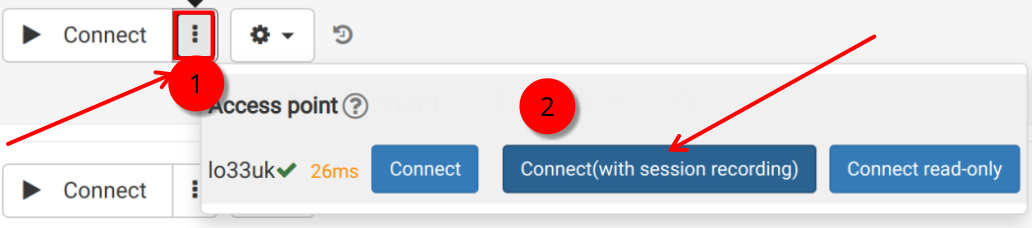
Trainer recordings specifically capture the activity on the Trainer's own DaDesktop machine. To initiate a session recording of the Trainer machine, follow these steps.
- Click on the three vertical dots to open a small dropdown menu. From that menu, select 'Connect (with session recording)'
-
An audio/video recording of the Trainer machine starts immediately, but the file is not available for viewing until the virtual classroom session is closed, at which point the recording is finalized. Please note, for SuperAdmin users, an additional menu option allows viewing of the live recordings as they occur.
- To access and manage your recordings, click the 'cog' icon and go to the Recordings menu.
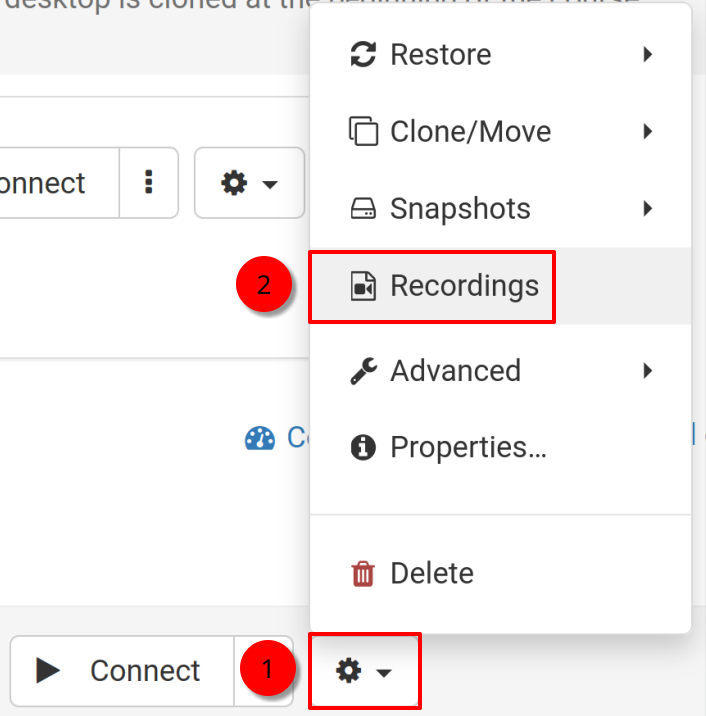
Recordings
There are a couple of ways to review Trainer recordings of their own machine.
- You can view them directly from the Recordings menu, as mentioned earlier. Here, recordings can be played back or deleted as needed. The icon showing two crossed spanners indicates 'Troubleshooting Recordings', which are generated automatically. These aren't designed for presentations but exist for diagnostic purposes whenever required.
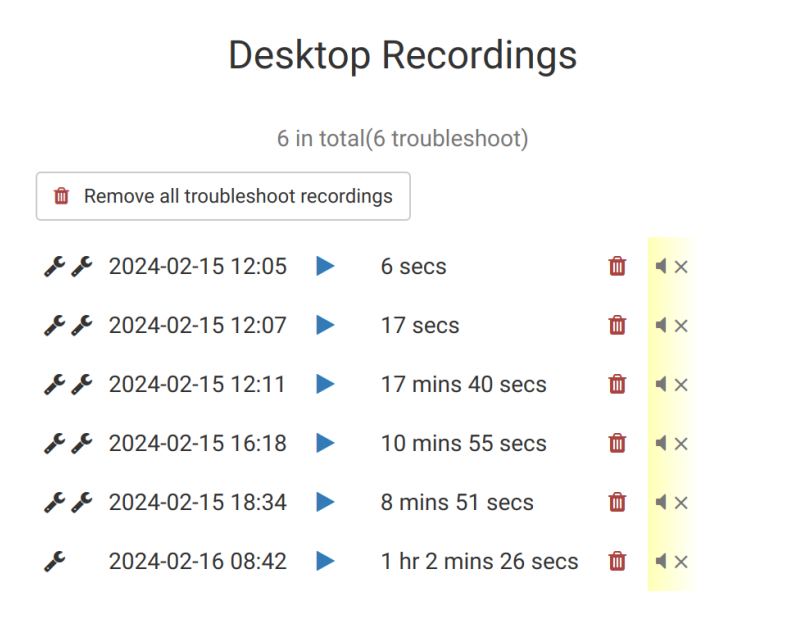
2. Alternatively, by navigating to the 'Recordings' tab within a specific course, you can see all associated recordings: Trainer recordings, Training Room recordings, and Troubleshooting recordings.