Transferring Files from a Host Machine into the DaDesktop Setup
Trainers have long asked for a way to copy files from their own laptop or desktop into the DaDesktop machine in China. Whether you need to bring over presentation decks, ISOs for a nested virtualisation setup to run multiple servers and desktops, or everyday files for a particular training session, this new addition gets it done.
The development team has rolled out a simple drag-and-drop file transfer feature in the newest Windows 10 and most Linux templates. You can now just drag files from your host machine – that is, your personal laptop or desktop – straight into the DaDesktop machine.
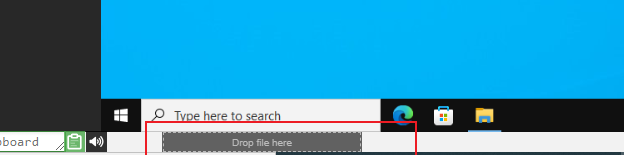
Right now, the feature only handles one file per transfer, but if you need to move several files, just bundle them into a zip archive and drag that across. The transfer process breaks files into chunks for efficient sending, so it performs optimally over a fast fibre internet link. Folders inside the archive – say, within the zip file – are preserved intact.
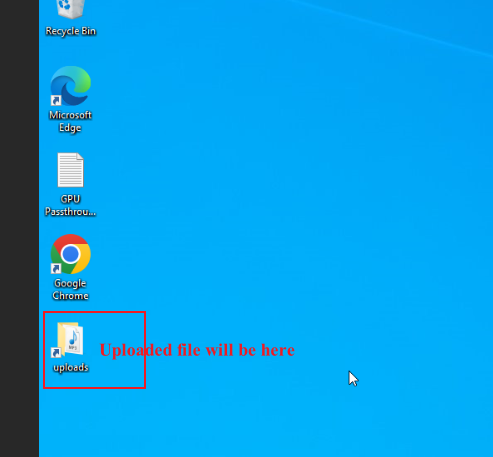
On Linux templates, at the moment there isn’t a desktop shortcut pointing to the Uploads folder like there is on Windows. Instead, you’ll locate the transferred files at :—
/home/student/uploads-to-dadesktop
Here’s a quick overview:—
OS Templates that currently have this feature enabled
- Debian 12 – v20240314 and later
- Ubuntu 22.04 – v20240314 and later
- Ubuntu 24.04 – v20240314 and later
- Windows 10 – v67 and later
OS Templates that do not have this feature enabled (as yet
- Debian 11
- Almalinux
- Kali-linux
- Any older versions of the templates
Further improvements to this early-release feature are on the way soon.
If you have feedback, reach out via the DaDesktop Technical support chat.